
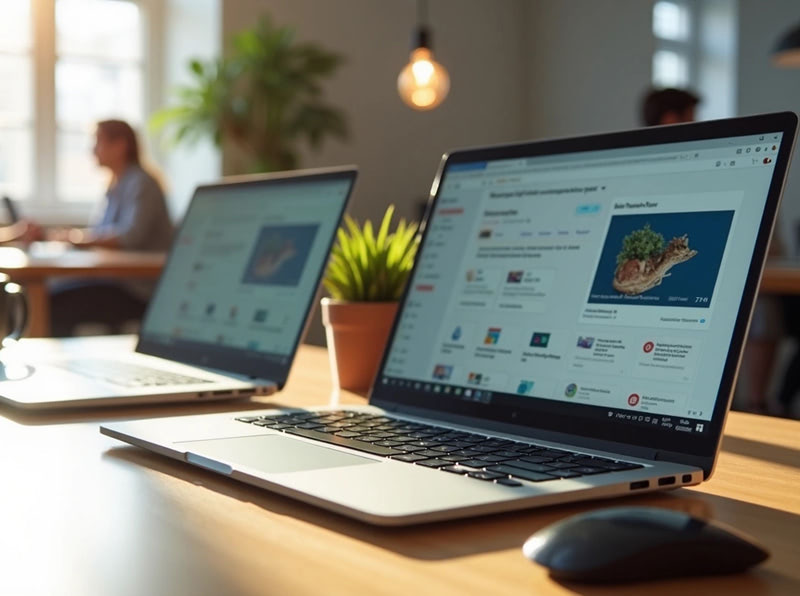
Are Chromebooks Good for Business?: Chromebooks might be better for your business than you think. These lightweight laptops boot up in just 10-15 seconds – significantly faster than a Windows PC. This speed boost is just one reason why more professionals want to give them a second look.
Small business owners need to watch their costs, and with good reason, too. Google’s data shows businesses can cut their total ownership costs by up to 70 percent compared to regular PCs. Small operations love these business-ready Chromebooks, especially when you have options under $300. On top of that, Google lets small businesses and non-profits lease them at $28 per month per user.
The perks go way beyond just saving money. Your team won’t waste time with typical IT headaches like building system images or cleaning up virus-infected computers. ChromeOS’s design reduces various cyberthreats right from the start. The system and apps update themselves automatically, so you can focus on growing your business instead of fixing tech problems.
These laptops aren’t perfect for every business setup. This piece explores what real users say to help you decide if a Chromebook fits your business needs.
Why Real Users Are Choosing Chromebooks for Work
Small business owners choose Chromebooks because they offer practical benefits. Let’s look at why these devices are becoming more popular in professional settings.
Affordability and simplicity
Chromebooks offer undeniable financial benefits. Most models cost between USD 199 and USD 329, making them one of the most cost-effective options for budget-conscious businesses. Business-grade Chromebooks typically range from USD 500 to USD 700, which costs nowhere near what you’d pay for comparable traditional laptops.
The benefits go beyond the original purchase price. A recent IDC report shows ChromeOS devices deliver a 245% ROI over three years. The same report estimates a three-year benefit of USD 3901 per device, which leads to remarkable efficiency gains for businesses.
These devices start up in under 10 seconds and handle updates automatically without disrupting your work. Business owners spend less time fixing technical issues and more time on their core work. The battery life runs from 10 to 14 hours on a single charge, which keeps you productive all day long.
Real-life stories from small business owners
A great example comes from an entrepreneur who started Make the Break during tough financial times. Money was tight with a baby on the way and unexpected car repairs. The founder started the business with a simple Chromebook.
The business grew, and the founder upgraded to a Google Pixelbook Go. They loved its “premium keyboard, excellent screen resolution, easy-to-use touch screen, and epic all-day battery”. This ground application shows how Chromebooks support businesses from startup through growth phases.
One business owner points out that the simple operating system boosts productivity: “A simpler OS with fewer options means that employees get right down to work”. This simplified process cuts down on distractions that you often find in more complex operating systems.
Chromebooks offer significant benefits to small businesses with limited IT support. These devices need minimal technical management, which helps owners “make the most of their often scarce IT resources”. They also reduce costs tied to software licensing and security management.
How Chromebooks helped during travel or emergencies
Business professionals love Chromebooks for their lightweight, portable design. They’re “lighter than a notebook of comparable size”, which makes commuting and business travel easier.
These devices have proven their worth in emergencies through reliability and availability. Emergency service providers appreciate that these devices are “durable yet lightweight and portable, making them easy to carry in emergency vehicles or during on-site operations.”
The cloud-based design lets you access critical documents from anywhere with internet connectivity. This feature becomes vital during unexpected situations where quick access to information can make the most crucial difference.
ChromeOS makes shared work possible during critical moments. First responders use Google Workspace for “real-time document sharing, scheduling, communication, and other collaborative efforts during emergencies”. This capability improves coordination exactly when teams need it most.
What Works Well on a Chromebook for Business Use
Chromebooks work great with web-based applications and make surprisingly good business tools. These devices take a cloud-first approach that lets professionals focus on getting work done instead of dealing with technical issues.
Web-based tools like Google Workspace and Trello
Chromebooks and Google Workspace combine smoothly to boost productivity. Google’s productivity tools work perfectly on ChromeOS. Businesses can create, edit, and work together on documents, spreadsheets, and presentations without extra software.
Microsoft users have options, too. Your Chromebook’s web browser gives you access to Microsoft 365 apps like Word, Excel, PowerPoint, OneNote, and OneDrive. The web apps let you create, edit, and share documents and files. You can send emails and manage your calendar online, though you can’t install desktop versions made for Windows or Mac.
Trello proves excellent for project organization. This visual tool works well with all major browsers, including Chrome. Teams can share information and reach business goals through Trello boards. Chrome extensions help users customize and organize their boards, lists, and cards.
Collabora Online adds more flexibility by supporting major document formats, including Microsoft Office and OpenDocument formats. This helps when working with clients who use different document types.
Recording webinars and managing content
Virtual meetings and content creation work well on Chromebooks. Zoom and Google collaborated to develop a Progressive Web App (PWA) that offers a seamless experience, similar to a desktop app. PWAs run faster and use less storage than regular apps, which suits cloud-based devices perfectly.
Zoom’s Web App lets you record to the cloud so that you can save important meetings and webinars. Starting a recording takes one click on the bottom toolbar or pressing Alt + R.
Dadan’s Chrome extension offers another way to record webinars without downloads. After installation, you can select recording modes (Screen, Webcam, or Screen + Webcam) and choose what to record.
Project management and collaboration apps
Chromebooks handle project management tools well. Gantter works perfectly with Google and creates Gantt charts for project management. It matches features with top desktop software like MS Project and works with MPP files.
Todoist runs smoothly on Chromebooks through the Play Store. The app helps you add tasks while browsing, save websites as tasks, and plan your day from the extension.
FreshBooks accounting software works great on Chrome OS for managing finances. Users can handle invoices, track expenses, and generate reports easily.
The Chrome Web Store offers a range of business tools that integrate with Google Workspace, including CRM solutions and invoicing systems. These tools help professionals customize their workflow based on what they need.
Where Chromebooks Fall Short for Businesses
Chromebooks offer many benefits, but businesses need to consider some key limitations before making the switch. Let’s look at what might hold you back from using a Chromebook for your business needs.
Limited offline capabilities
The biggest problem with Chromebooks is how much they depend on internet connectivity. Most web apps won’t work without Wi-Fi. Google has made improvements to offline features, but you need to set them up ahead of time. Google Docs, Sheets, and Slides work offline—if you turn on offline mode first.
Here’s what you can do offline:
- Access media files from a USB or SD card
- Browse files with Google Workspace (after offline setup)
- Use certain Android apps that don’t need the internet
Gmail requires a special setup to function offline and won’t run in Incognito mode. This heavy reliance on the internet makes Chromebooks challenging for businesses in areas with poor connectivity or teams that travel often.
No support for advanced desktop software
ChromeOS powers Chromebooks instead of Windows or macOS, which creates some hard limits. You can’t install regular desktop apps like Adobe Photoshop, Microsoft Outlook desktop client, AutoCAD, or many accounting tools. Professional apps such as Visual Studio, Maya, Avid Pro Tools, After Effects, and Figma don’t work correctly on Chromebooks.
This limitation could be a dealbreaker if your business needs specialized software. Microsoft’s web versions of Office tools lack many features you’d find in their desktop versions. Resource-heavy applications often run slowly, freeze up, or crash.
Challenges with file formats and compatibility
Business users face ongoing headaches with file compatibility. ChromeOS’s closed nature means you can’t run Windows .exe files, macOS applications, or professional audio formats used by tools like Avid Pro Tools.
Microsoft Office files come with their limits, especially macro-enabled files like .xlsm. Users encounter unhelpful messages, such as “Unknown file type,” when attempting to open unsupported files. The suggested fix—saving files to Google Drive first—adds extra steps to your workflow.
Hardware compatibility brings its own set of issues. Some storage devices don’t work, and connecting displays through USB-C often leads to cable problems. Businesses that rely on specific peripherals might find these unexpected complications frustrating.
Is a Chromebook Good for Your Business? Key Considerations
You need to think over several key factors to decide if Chromebooks are right for your business. Your specific business context will determine if ChromeOS devices are worth the investment, beyond the pros and cons we’ve discussed.
Nature of your work and software needs
Your daily software requirements play a crucial role. The switch to a Chromebook depends on finding cloud alternatives, Android apps, or Chrome extensions that match your current desktop applications.
The transition works smoothly for companies that already use Google Workspace. Some business challenges might pop up. To name just one example, complex Excel spreadsheets with macros might not work correctly in Google Sheets, and heavily redlined Word documents don’t always translate well between formats.
Zoom and GoToMeeting users on Windows and macOS need to install plugins to host meetings, while Google Meet works right in the browser. Companies that use remote desktop access for legacy enterprise applications should check ChromeOS compatibility first.
Chromebooks serve as gateways to cloud-based applications and storage, replacing traditional computers that store work locally. Small retail shops that don’t need specialized software could be perfect candidates for switching entirely to Chromebooks.
Team size and IT resources
Chromebooks give substantial management advantages to small and mid-sized businesses with limited IT support. These devices deploy 63% faster than other operating systems and are 36% easier to manage.
The Chrome Enterprise Upgrade console lets IT administrators view and control all Chromebooks. Updates happen automatically without anyone needing to do anything.
The money side looks good, too. Companies that switch to Chromebooks often start using Google Workspace, which gives them access to productivity tools for a low monthly subscription. This can cut software licensing costs by up to 45%.
Security and data management requirements
Security research firm Atredis Partners found that ChromeOS provides better protection than Windows and macOS. Chromebooks face 24% fewer security attacks and haven’t had a single reported ransomware attack.
This reliable security comes from several built-in features:
- A read-only operating system that prevents malware modifications
- Blocking of traditional executable files (.exe) that limit the attack surface
- Built-in protection against malicious websites and downloads
- Automatic security updates that apply without user intervention
ChromeOS makes data management more cloud-focused. The device stores minimal data by default, which reduces risks if it’s lost or stolen. IT teams can set rules to prevent data leaks through copy/paste restrictions, screen capture blocking, and printing limitations.
Tips from Real Users on Making the Most of a Chromebook
Users have found that there are practical ways to make the most of their Chromebook experience in business settings. Their firsthand tips can help you work around limitations and discover the full potential of these devices.
Use cloud-based alternatives to desktop apps.
Businesses that switch to Chromebooks quickly realize that web-based applications can replace most traditional software. Google Workspace offers document, spreadsheet, and presentation tools, whereas Microsoft provides web versions of Word, Excel, and PowerPoint, complete with interfaces similar to those found in desktop apps. Pixlr delivers impressive image editing power through your browser. WeVideo lets you edit videos right from your browser. You can manage finances efficiently with Mint.com instead of desktop accounting software.
Set up offline access for key tools.
You should configure offline access before internet outages happen. Gmail works offline once you visit Gmail offline settings and check “Enable offline mail”. Google Drive lets you access specific files without the internet:
- Right-click any file or folder and select “Available Offline”
- Download movies or shows via Google Play Movies to watch without internet
- Take notes using Google Keep that syncs automatically when you’re back online
Invest in Chrome-compatible accessories.
The “Works With Chromebook” badge should guide your peripheral purchases. These certified accessories—including USB-C hubs, styluses, mice, and keyboards—work seamlessly with ChromeOS. External storage drives give you extra space for files and media during offline work.
Train your team on ChromeOS basics.
Your team needs a well-laid-out onboarding process with resources when switching from Windows or macOS. Show them keyboard shortcuts that boost their work speed. The keyboard overlay feature (accessed by pressing Ctrl twice) helps new users navigate better. Make sure to focus on training that shows Google Calendar and Google Docs’ shared features to encourage teamwork.
Conclusion
Chromebooks give businesses affordable and easy-to-maintain computing options. They start up quickly, have long battery life, and cost significantly less to own than traditional computers. Small businesses with limited IT staff will find them especially appealing. On top of that, they come with built-in security and automatic updates that solve many IT problems while providing reliable protection against modern threats.
Despite that, these devices don’t work perfectly for every business situation. Your software needs, internet connection quality, and work processes will ultimately determine whether Chromebooks boost or hurt your productivity. Companies that rely heavily on special desktop software or work in places with poor internet might find Chromebooks too restrictive.
Real-life business users say Chromebooks work best with cloud-based alternatives and good offline work planning. Small retail shops, service businesses, and teams already using Google Workspace can get the most value from ChromeOS devices. Creative professionals who need powerful software might need to look at other options.
Companies should take time to assess their daily software needs, team size, IT abilities, and security requirements before making a decision. Chromebooks are a good choice for many businesses, but their usefulness depends on your business’s specific situation. With good planning, these lightweight devices can become powerful tools that simplify operations and cut down both costs and technical issues.
Are Chromebooks Good for Business | Blog Article | East End Technology | All Rights Reserved | Riverhead, NY 11901