
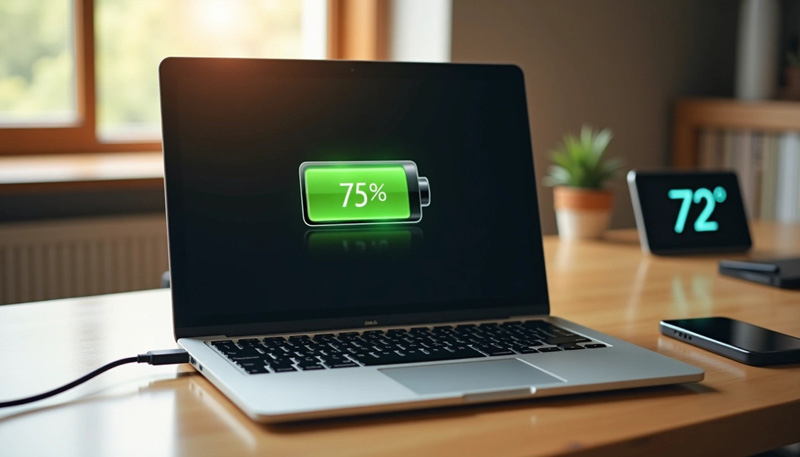
Extend Laptop Battery Life: You’ve probably found yourself desperately hunting for an outlet halfway through your workday while trying to extend your laptop’s battery life. Modern ultrabooks can gain up to two hours of extra runtime with just five simple tweaks. This extra time gives us that significant breathing room when power outlets are scarce.
Battery anxiety affects most of us, especially during important meetings or lectures. Studies reveal that proper adjustments can boost daily battery runtime by 20-30% and double its overall lifespan. Your laptop’s battery health benefits by a lot when you maintain charge levels between 20% and 80%. Batteries come designed to handle a specific number of charge cycles, and many experts advise against letting your device completely drain.
The sort of thing I love is uncovering hidden settings and optimizations that most users miss. Your battery drain might surprise you – Google Chrome can consume up to 45% of your power, while Microsoft Excel uses 21%. Once made, these adjustments will automatically save power in future sessions. You’ll find yourself reaching for the charger less often than before.
Secret Settings That Instantly Save Battery
Your laptop’s display is a power-hungry monster that typically eats up 40% of total system power. The easiest way to save battery life is to adjust your screen brightness – cutting it in half can give you up to three extra hours of runtime. You can also extend battery life by reducing your refresh rate from 144Hz to 60Hz, which saves 15-20% on gaming laptops and 10-15% on ultrabooks.
Wireless technologies drain power even when they’re not being used. You should completely turn off WiFi when working offline instead of letting it search for networks. The same goes for Bluetooth – turn it off when you’re not using any peripherals. These settings are right there in your system tray or Quick Settings panel.
That fancy keyboard backlight looks great but slowly drains your battery power. You can improve efficiency by setting up automatic timeout for your backlight instead of keeping it on all the time.
Most people don’t take full advantage of battery saver mode, which smartly manages power usage. It automatically reduces screen brightness by up to 30% and limits background activities that quietly drain your battery. You might want to think about changing when it kicks in – the default 20% threshold could be too low.
One final tip: if you need an uninterrupted Bluetooth connection, make sure to uncheck the “Allow the computer to turn off this device to save power” option in your Bluetooth settings.
Hidden System Settings Most Users Miss
Windows has powerful battery-extending options hidden in its deeper menus, beyond the basic settings. You can get detailed control over your laptop’s energy usage by creating a custom power plan. Just open Control Panel > Hardware and Sound > Power Options > Create a power plan.
Sleep timer settings can make a big difference in battery consumption, but many users miss them. Your battery will last much longer if you set the “Display-off timer” to three minutes and “Sleep timer” to five minutes while running on battery power. You can adjust these timings through Settings > System > Power & battery > Screen, sleep, & hibernate timeouts.
Your laptop’s battery drains faster because of startup programs running in the background. You can disable the ones you don’t need through Task Manager > Startup Apps tab or Settings > Apps > Startup. Users have seen their battery life jump from 45 minutes to 2-3 hours just by making this change.
Managing GPU power settings becomes crucial for laptops with dedicated graphics. NVIDIA Optimus technology switches between integrated and high-performance graphics automatically. You can also choose which GPU to use for each application manually.
Background processes can drain your battery quickly. You should check power-hungry apps through Settings > Apps > Apps & notifications and turn off unnecessary background activities.
Advanced users can extend their battery life by setting the “Maximum processor state” to 80% in power options. This change reduces heat and makes the battery last longer.
Smart Charging and Battery Health Tips
The “20-80 rule” is the gold standard to extend your laptop battery’s lifespan. Batteries that stay between 20% and 80% charge last 2-3 times longer than those kept at 100%. This happens because extreme charge levels stress the battery cells chemically.
Heat is a big deal as it means that battery degradation speeds up. Chemical aging increases at temperatures above 95°F and can cut months off your battery’s life. Your laptop needs proper ventilation, so keep it away from soft surfaces like beds or couches that block airflow.
Modern devices are a great way to get better battery life through “Smart Charging” features that cap charging at 80%. These settings help prevent battery wear by 20-30% over two years.
High-quality chargers from trusted brands are vital to battery longevity. Cheap knockoff chargers ignore safety standards and send wrong power signals that harm internal components.
Unused laptops should stay at 50% charge in a cool, dry place. This protects them from deep discharge damage and full-charge stress.
Partial charging cycles between 40% and 80% put less strain on your battery than full 0-100% cycles. Small top-ups during the day help your battery more than waiting until it’s almost empty.
Conclusion – Extend Laptop Battery Life
These battery-saving strategies change how we use our laptops without power outlets. Of course, adjusting display brightness gives impressive results, and turning off unused wireless features adds more runtime. On top of that, it helps to use custom power plans that give us detailed control over energy use, so our devices work smarter.
Your battery’s health matters just as much as daily runtime. The 20-80 charging rule protects your investment and pays off over time. This simple habit paired with good temperature management can double your battery’s life at no cost.
Many people overlook these significant settings because manufacturers rarely show them during setup. All the same, a quick 15-minute setup of these options can deliver hours of increased productivity each week. Battery worries disappear when you get two extra hours during important meetings or travel.
Students, professionals, and casual users can apply these power-saving methods to laptops of all brands. Smart charging habits today lead to fewer battery replacements tomorrow and less time searching for outlets. You can take charge of your laptop’s power management and enjoy the freedom of longer, stress-free computing wherever you go.
Extend Laptop Battery Life | Blog Article | East End Technology | All Rights Reserved.| Riverhead, NY